
Image and Text Rotation Widget



Table of Contents
The Text Rotation widget lets you display rotating text messages as an overlay on your stream. It’s commonly used for stream labels, calls to action, announcements, or fun on-screen messages that change automatically.
Adding the Text Rotation Widget
- Open your Sound Alerts Dashboard
- Go to Scenes
- Add a new scene or edit an existing one
- Select Element and then Text Rotation from the widget list

Once added, the widget will appear in the preview area and can be customized immediately.
Image Rotation
In addition to rotating text entries, the Text & Image Rotation Widget also supports image rotation. This allows you to cycle through multiple images automatically within the same overlay, making it ideal for displaying logos, sponsor banners, memes, or visual announcements.

Just like text rotation, image rotation is fully customizable and can be combined with animations, sizing, and positioning options to match your stream design.

Text Rotation
This section controls how your text behaves and appears.
- X / Y Position – Moves the widget horizontally or vertically on your overlay
- Width / Height – Defines the size of the widget container
- Opacity – Adjusts how transparent the text appears
These settings help you place the widget precisely where it fits best on your stream layout.
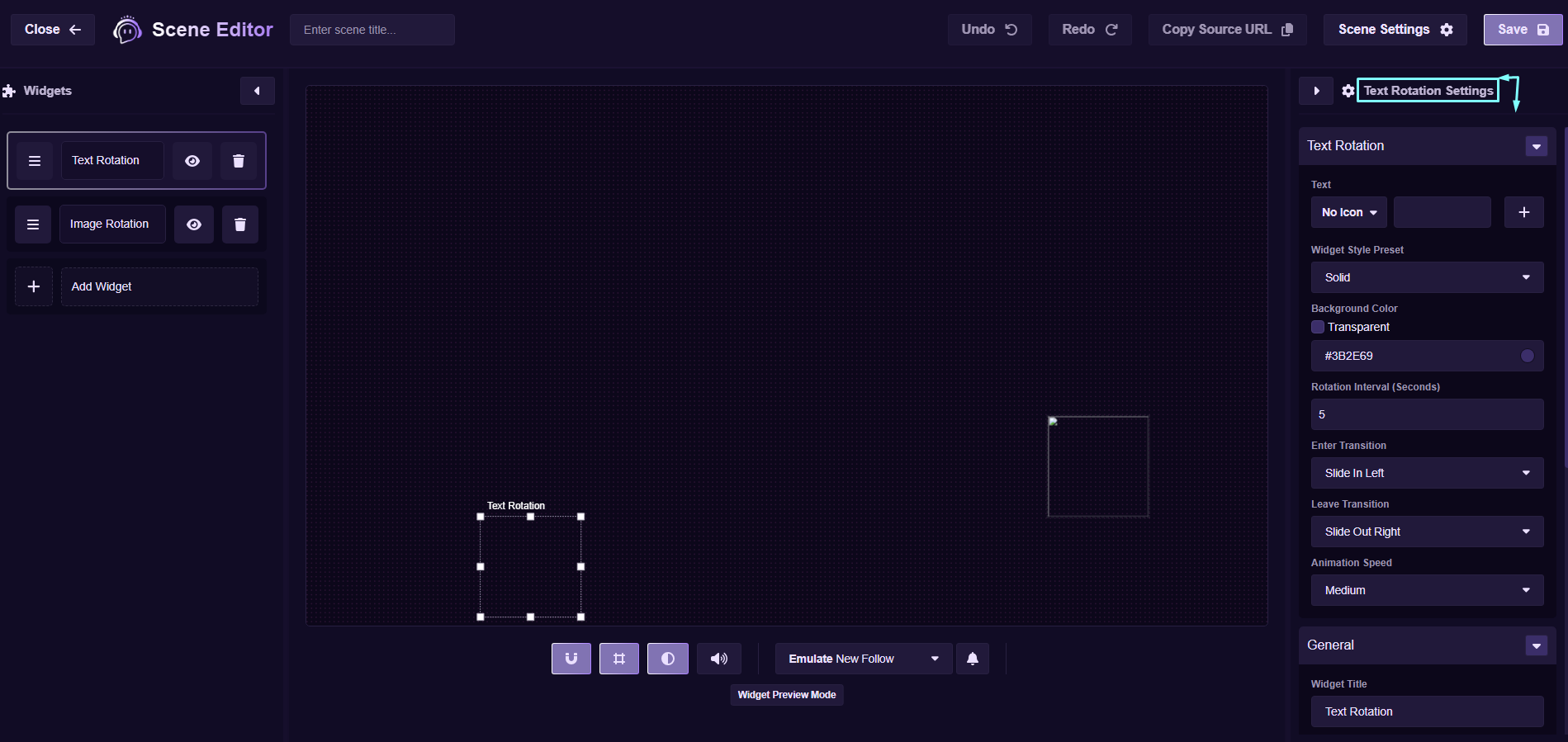
Text Entries
Text entries are the messages that rotate during your stream.
- Click Add to create a new text entry
- Each entry supports custom text and an optional icon
- Entries are shown one at a time in a loop
You can reorder or remove entries at any time.

Rotation Behavior
Control how and when text changes.
- Rotation Interval – Time before switching to the next text
- Looping – Keeps the rotation running continuously
This allows you to balance visibility without distracting viewers.

Icons
You can now add an icon to each text entry.
- Icons appear next to the text
- Useful for highlighting important messages
- Helps make your overlay more visually engaging
Icons are optional and can be mixed with text-only entries.

Styling
Customize how the text looks on stream.
- Font size and alignment
- Text color
- Background styling (if enabled)
Use these options to match your stream’s branding.
Troubleshooting
If the widget does not appear on stream:
- Make sure the overlay is active in your streaming software
- Confirm the widget is not hidden behind other elements
- Check opacity and size settings
FAQ
There is no strict limit. You can add as many text entries as needed, but for best readability it’s recommended to keep the list concise.
The rotation speed depends on the Rotation Interval you set in the widget settings. You can adjust this to rotate quickly or keep messages visible for longer.
Yes. You can adjust font size, colors, alignment, and positioning to ensure the widget fits seamlessly into your stream layout.
Yes. Icons are completely optional. You can mix text-only entries with entries that include icons, or use text only.